 756b579924
As discussed in a YouTube comment (https://www.youtube.com/watch?v=KEWhOzDCfLg&lc=UgzqmZf7hgBRjGLe-Pp4AaABAg), the `cd` commands to "return" back to the original directory are unnecessary, because it is *impossible* for a script to change the working directory of a shell. When you run a `cd` command in a script, the working directory does change, but only for the script. When the script exits, nothing has happened to the working directory of the shell where you ran the script. In fact, it is *impossible* for a script to change the working directory of the shell, even if you wanted to do that. Some ways you can change the working directory: - an alias that runs a `cd` command (an alias is equivalent to running the commands in your shell) - `alias gohome="cd ~" - a shell function that runs a `cd` command (this is the primary reason why things like z.lua are implemented as a shell function, not a script) - `function gohome() { cd ~ }` - sourcing a script (so there is a way to do it with a script, but you have to run the script in a specific way, and this will also make exit quit the shell, not just the script) - `source ./script-name` These are the ways I know of doing it, there may be some others. Even if a script could change the shell's working directory, `fla.sh` is doing `cd "$PWD"`, which is basically a no-op, because `$PWD` is automatically updated: ```bash echo "$PWD" # go to the flashcard decks directory cd "$DIR" echo "$PWD" ``` The above outputs: ``` /home/sami /home/sami/.local/share/flash ``` So, doing `cd $PWD` actually would not return back to the original directory, it would stay in whatever directory you've cd'd into. ----- Another minor change in this PR is to output errors to stderr instead of stdout (before this change, errors were output to stdout). With `fla.sh`, this doesn't really make much of a difference, but generally you want to output errors to stderr. This is useful, if you want to run a script quietly, but still want to see errors. If errors are output to stderr, this can be done with by running e.g.: ```bash ./script-name > /dev/null ``` The above will hide all regular output (redirecting stdout to `/dev/null`), but will still show anything output to stderr (i.e. error messages). To also hide error messages (make a script run completely silently), you can run: ```bash ./script-name > /dev/null 2>&1 ``` The above `2>&1` syntax redirects stderr (`2>`) to the same place where stdout is redirected, and `> /dev/null` is redirecting stdout to `/dev/null`. To only hide error messages, but show regular output, you could run `./script-name 2> /dev/null`, but that might not be a smart thing to do (if there are errors, you probably want to know about them). The proposed change uses `>&2`, which redirects stdout to stderr, so that regular print commands (e.g. `echo`) are displayed on stderr. Both stdout and stderr are shown similarly in a terminal, but they're still separate, so they can be redirected, etc. Some terminals may also show stderr messages differently. Both `echo "..." >&2` and `>&2 echo "..."` work identically, but I've used `>&2 echo "..."` because I think it's more intentional ("the following output is an error"), and if there's a long error message, the `>&2` could get "lost" at the end of a line. I picked it up on Stack Overflow, and I've used it ever since: https://stackoverflow.com/a/23550347 |
||
|---|---|---|
| .github | ||
| img | ||
| CONTRIBUTING.md | ||
| LICENSE | ||
| README.md | ||
| flash | ||
README.md


flashcards in your terminal! This script was inspired by a basic script i saw in a youtube video by a user named nixcasts. I Like the Anki flashcard system and so im working to replicate it in a simple manner using plain text documents and a shell script to aid my ability to study with active recall and spaced repetition.
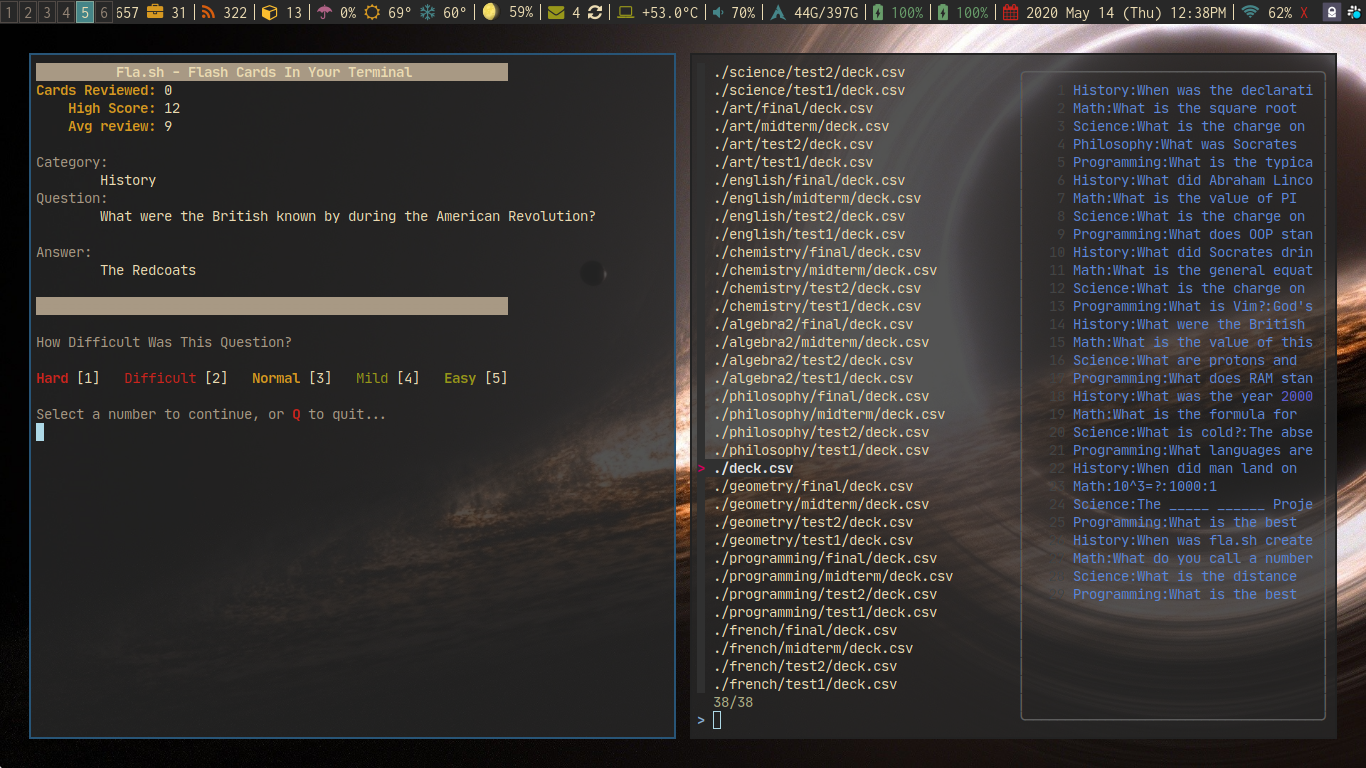
This script is an expanded version of the one featured in This nixcasts Video
This expanded version will create a flash directory in .local/share/ and create an example deck.csv file for you.
You can have as many 'decks' in the flash directory as you want, and having directories and nested directories filled with .csv 'decks' will all work with this system. There is also no practical limit on the amount of 'cards' a 'deck' can hold.
Dependencies
This script uses:
- fzf
- bat (optional if you use
flash -p catto use the core utility instead ofbat) - (if on macOS the GNU core utilities are a dependency (namely the
shufutility))
Install these prior to running the script.
Installation
Windows
Untested, not sure if this script and its dependencies will work with WSL or not.
Mac
Will need to have brew to install dependencies listed below and also brew install coreutils to get the GNU core utilities as shuf is not in macOS by default.
You will need to put the script itself somewhere in your $PATH and execute it to initialize setup.
Confirmed to work on macOS 10.14.6 more recent version welcome to test and file an issue/pull request to update README if other versions run the script as it should.
Linux
To utilize this script copy/move it to your ~/.local/bin/ folder or any place in your $PATH
Troubleshooting
Common issues will be added here as they arise during the stability stage of this script.
Checks:
- Is your system supported? see above
- Are all necessary dependencies installed?
- what version of bash do you have installed? or do you have bash installed?
Usage
The deck.csv file should have colon : separated values in 4 columns
Organized like this:
category:question:answer:0
First Field: The category of the flashcard
Second Field: The Question being asked
Third Field: The Hidden Answer
Fourth Field: The Score*
* The score determines how often which cards are shown to you. A good idea is to start all your cards out at 0 so they are all served to you equally. As you study and review and mark the more familiar cards as 'Mild' or 'Easy' more points will be added. The lower point cards are sorted to the top and the top 10 are taken and shuffled and then drawn from. This way as you learn the material the items you are less familiar with bubble up into the shuffled pool for drawing and those that go up in points due to increased familiarity go down because you're rating the material as easier.
Decks
If you would like to browse a collection of decks readily available in your subject matter that are comaptible with fla.sh then you should check out Flash Decks.
Media (accepting contributions)
- Fla.sh Plain Text Flashcards in your Terminal
- Flash Cards In Your Terminal With Fla.sh
- Fla.sh++ A Comprehensive Walk Through of My Bash Flashcard Script Project
- Even Exam Prep Can Be Done From The Terminal With Fla.sh
Support
This is free, open-source software. If you'd like to support the development of future projects, or say thanks for this one, you can donate to me through paypal or buy me a coffee:

